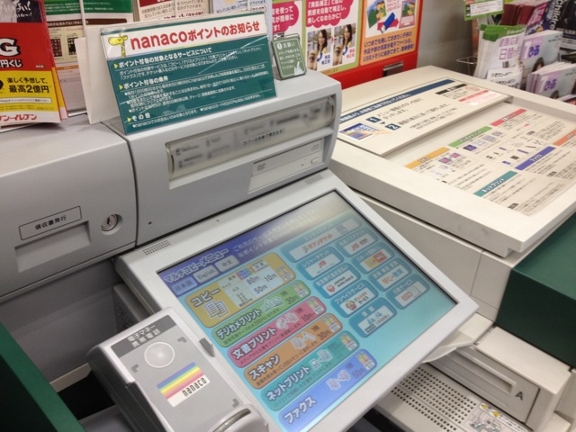
Need a boarding pass, concert ticket, or visa form on paper, with no printer in sight? In Japan, the nearest convenience store has you covered. Most branches have a multicopy machine that prints, copies, and scans for a few coins.

You can print straight from your phone or from a USB stick, and a black-and-white page costs ¥10 to ¥20. The catch is that the chains don’t share one system. 7-Eleven has its own app. FamilyMart, Lawson, and Ministop share a different service, so one method covers all three.

The short version: At 7-Eleven, use the free 7-Eleven Multicopy app, which has an English interface. At FamilyMart, Lawson, or Ministop, upload your file to the Network Print website in English — no app or sign-up needed. Either way, bring coins.
ChainEasiest method for visitorsApp neededWorks in EnglishBlack and white, per page
7-Eleven7-Eleven Multicopy appYesYes¥20
7-Eleven (backup)Kantan netprint websiteNoNo, Japanese only¥20
FamilyMart, Lawson, MinistopNetwork Print websiteNoYes¥20
FamilyMart, Lawson, Ministop (residents)PrintSmash appYes, Japanese App Store only on iPhoneYes, per its App Store listing¥10

Important: Several of the apps recommended in other guides — PrintSmash, netprint, and Kantan netprint — are only on the Japanese App Store. If your Apple ID is set to another country, you won’t be able to download them. The two methods we recommend above work with an overseas account.

Suggested Activity
Earn extra income as a clinical study participant!
Help us improve health care in Japan. Join an information session and receive 5,000 yen plus a free health checkup, with no commitment. Tourist and student visas welcome. ...

A few minutes of preparation at your hotel saves a lot of fumbling at the machine.

  • Save the file as a PDF. PDFs print reliably on every system. Word, Excel, and PowerPoint files are hit and miss, and the 7-Eleven Multicopy app doesn’t accept them at all.
  • Keep it under 10 MB if you are uploading to a website. The 7-Eleven Multicopy app takes files up to 30 MB.
  • Remove any password. Password-protected PDFs are rejected by most of the services.
  • Set the page size to A4. The machines only stock Japanese paper sizes (A3, A4, B4, and B5). There is no US Letter.
  • Download the file to your phone. Files that only live in iCloud, Google Drive, or Google Photos may not show up when you go to select them.
  • Upload before you leave. 7-Eleven and FamilyMart no longer offer their own free in-store Wi-Fi.
  • Bring coins. The machines at 7-Eleven don’t take notes, cards, or Suica.

The 7-Eleven Multicopy app is the easiest option for visitors. It is free, needs no account, and has an English interface. It sends the file straight from your phone to the machine over the machine’s own Wi-Fi, so it works without mobile data and nothing is uploaded to a server.

Download it from the App Store or Google Play before you go. It needs iOS 18 or later, or Android 11 or later, and prints PDFs and images (JPEG, PNG) only.

Step by step with the Multicopy app

  1. On your phone: Open the app and choose the plain paper print service (普通紙プリント). Photo print (写真プリント) and postcard print (はがきプリント) are the other options.
  2. Pick your color mode and paper size, then tap Add File and select your document.
  3. Tap Save to QR Code, then Print Now. A QR code appears on your screen.
  4. At the machine: Hold the QR code up to the reader while the main menu is showing. If nothing happens, press the button marked QRコードをお持ちの方 (“for those with a QR code”) and try again.
  5. On your phone: Tap Start Sending. Your phone will ask to join the machine’s Wi-Fi — tap Join on iPhone or Allow on Android.
  6. At the machine: Choose コイン支払い (coin payment) or nanaco支払い (nanaco payment), insert your coins, and press プリントスタート (print start).
  7. Collect your pages and your change.

Pro tip: Saved QR codes in the Multicopy app don’t expire, so you can set up the print job the night before and just scan it when you reach the store.

No app? Use the Kantan netprint website

If the app won’t install or won’t connect, 7-Eleven has a browser version called Kantan netprint (かんたんnetprint). It needs no sign-up and accepts Word, Excel, and PowerPoint files as well as PDFs. The downside is that the site is in Japanese only.

  1. Open the site, tick 同意する (agree), and tap ファイルを選択 (choose file).
  2. Set 用紙サイズ (paper size) and カラーモード (color mode), then tap 登録する (register).
  3. Tap コンビニでプリントする (print at the convenience store), then QRコードを保存 (save QR code). You’ll also see an eight-character print reservation number (プリント予約番号).
  4. At the machine, hold the QR code up to the reader. Alternatively, press プリント (print), then ネットプリント (net print), type in the number, and press 確認 (confirm).
  5. Check the preview, press これで決定 (confirm), pay, and press プリントスタート (print start).
Save the QR code before you close the page. The reservation number disappears as soon as you close the browser window, and there is no way to get it back. The file is also deleted at 11:59 p.m. on the day after you upload it, so don’t upload too far ahead.

All three chains use the same machines, and the Network Print website is the simplest way in. It has an English version, needs no app and no registration, and you don’t have to connect to the machine’s Wi-Fi.

We tested this at a Lawson in October 2026: The English upload worked without a hitch, and black-and-white pages cost ¥20 each.

Network Print English homepage on a phone, showing the Use non-membership button
Tap “Use non-membership” on the Network Print homepage to upload without an account.

Step by step with the Network Print website

  1. On your phone: Open the Network Print site in English in a normal browser tab — not a private or incognito one. If you start from the homepage instead, tap Use non-membership. Then tap I agree.
  2. Tap Select Files and choose your document, then choose a paper size.
  3. If your document isn’t A4 (for example, US Letter), choose Print by fitting to the paper size.
  4. Tap Upload Files and wait until the status changes to Print OK.
  5. Tap Display QR code, then Save QR code. You’ll also get a 10-character user number.
  6. At the machine: Switch the screen to English first if you want to. The official instructions say to change the language before you start.
  7. Press the QR code button and hold your code up to the reader. At Lawson the button is QRコードを読み取る (read the QR code). At FamilyMart it is 2次元コードを持っている (“I have a 2D code”). Ministop uses the same machines as Lawson and FamilyMart.
  8. Choose 文書プリント (document print) for PDFs or 画像プリント (image print) for photos. This is also where you choose double-sided printing.
  9. Put your money in the coin box beside the machine and start printing.

Pro tip: If the QR reader won’t cooperate, press ネットワークプリント (Network Print) and type in your user number instead. At FamilyMart, that option is behind the copy service button at the bottom right of the screen. Watch out for zero versus the letter O.

Your upload stays available for eight days, including the day you upload it, and you can reprint it as many times as you like in that period.

Suggested Activity
Sim Local eSIM Japan: Cheap eSIM for Japan
Sim Local’s Japan eSIM averages $7 less than major competitors across 4-, 7-, 10-, and 15-day plans, with a higher fair-use limit for real high-speed data, all on AU’s trusted network. No stores, no paperwork—just scan and go. ...

For residents: PrintSmash is half the price

The PrintSmash app sends PDFs and photos straight to the machine over Wi-Fi, with no upload and no account. It costs ¥10 per black-and-white page instead of ¥20, which adds up if you print often.

It isn’t our first pick for visitors, though. On iPhone it is only available on the Japanese App Store, and recent reviews there complain regularly about failed Wi-Fi connections.

To use it, open the app and choose to print photos (写真をプリントする) or a PDF (PDFをプリントする), add your files, then press QRコードを読み取る on the machine and hold up the QR code the app shows you.

The old-school method still works at every chain, and it is the cheapest: ¥10 per black-and-white page and ¥50 for color, up to B4 size.

Save your document as a PDF, plug the stick into the machine, choose the print menu, and follow the prompts. 7-Eleven machines also read SD and microSD cards, and Lawson machines have both regular USB and USB-C ports.

Recommended Service
Navigate Japan with a Saily eSIM from $US3.99
With mobile data packages from $US3.99 for 1GB to $US24.99 for 20GB, Saily has your Japan data needs covered. Saily is brought to you by the people behind NordVPN. Use code TOKYOCHEAPO15 for 15% off, applied automatically through this link.

It is also the most private option, since nothing gets uploaded anywhere.

Prices are per printed side on plain paper, including tax. A double-sided page counts as two.

Print type7-Eleven Multicopy app7-Eleven Kantan netprintNetwork Print (FamilyMart, Lawson, Ministop)PrintSmash, or a USB stick at any chain
Black and white, any size¥20¥20¥20¥10
Color, up to B4 (includes A4)¥50¥60¥60¥50
Color, A3¥80¥100¥100¥80
Photo print, L size¥40¥40¥30¥30 (¥40 at 7-Eleven)
Photo print, 2L size¥100¥100¥80¥80 (¥100 at 7-Eleven)

Note that printing from your phone at 7-Eleven now costs ¥20 per black-and-white page whichever way you do it. Only a USB stick or SD card still gets you the old ¥10 rate there.

Both systems can also scan a paper document to your phone for ¥30 per page, using the Multicopy app at 7-Eleven or PrintSmash at the other chains.

You pay at the machine, not at the register.

  • 7-Eleven: Coins or a nanaco card only. The machine gives change, but it doesn’t take banknotes, credit cards, or transport cards like Suica and Pasmo.
  • FamilyMart, Lawson, and Ministop: Cash goes into a coin box next to the machine. Have coins ready rather than relying on notes.

If you only have notes, ask the staff at the register to change one before you start. Saying ryōgae onegai shimasu (could you change this, please?) while pointing at the machine does the trick.

ProblemWhat to do
The edges of the page are cut offThe machines can’t print on the outer 5 mm of the page, and US Letter pages don’t match A4. Choose “Print by fitting to the paper size” on the Network Print site, tick ちょっと小さめ (“slightly smaller”) on Kantan netprint, or re-save the file as A4.
The upload is rejectedCheck the file is under 10 MB, has no password, and has a simple file name using only English letters and numbers. Converting to PDF fixes most other errors.
You closed the browser and lost the numberOn Kantan netprint, you’ll need to upload again. On Network Print, reopen the site in the same browser and tap Manage Files — this won’t work if you used a private tab.
The machine says the file doesn’t existThe number has expired or was mistyped. An eight-character number is for 7-Eleven; a 10-character one is for FamilyMart, Lawson, and Ministop. They don’t work at each other’s stores.
The Multicopy app won’t send to the machineTurn airplane mode on and off, make sure Wi-Fi is on, and on iPhone check that Local Network is allowed for the app in Settings. A “no internet connection” warning while sending is normal.
Your iPhone photos won’t uploadiPhones save photos as HEIC files by default, which the print services don’t list as supported. Take a screenshot of the photo or export it as a JPEG first.

Files you upload to Kantan netprint or Network Print are deleted automatically when they expire, and the machine wipes its copy after printing. But anyone who has your number can print your file in the meantime.

For sensitive documents such as passport scans, use the 7-Eleven Multicopy app, which sends the file directly to the machine without uploading it anywhere. On Kantan netprint you can also set a four-digit PIN (暗証番号) when you upload. The no-registration version of Network Print has no password option.

For bigger jobs such as posters, flyers, or business cards, see our guide to cheap professional printing in Tokyo.

While we do our best to ensure it’s correct, information is subject to change. Post originally published in April 2012. Last updated in October 2026, by Chris Kirkland.

Written by:
Chris's Tokyo favorites are: Tomoe Sushi, Borne, Udagawa Cafe Suite
Filed under: Business
Ask our local experts about Tokyo

Get our Tokyo Cheapo Hacks direct to your inbox

Watch this next